
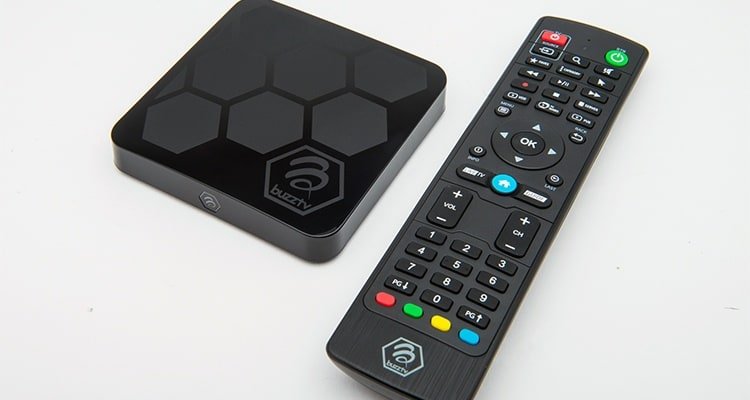
Android TV IPTV Setup Guide: Easy Install & Tips 2026
Welcome — this android tv iptv setup guide walks you through everything needed to get IPTV running smoothly on Android TV and Android boxes like the Nvidia Shield, Chromecast with Google TV, Xiaomi Mi Box and more. Follow the step-by-step methods below (Hot Player recommended) and use the app links and troubleshooting tips to resolve common issues quickly.
Table of Contents
What is Android TV IPTV and why use it?
Android TV IPTV refers to delivering live television and on-demand video streams over the internet (IPTV) to devices running Android TV or Android TV-based boxes. Using IPTV on an Android platform gives you a flexible, app-driven viewing experience with access to live channels, catch-up, and VOD libraries without traditional satellite or cable hardware.
Benefits include cross-device compatibility, customizable channel lists, easy app updates, and high-quality streaming when paired with a stable network. For supported apps and features check the Features section of our site.
Before you begin — requirements
- An Android TV or Android box connected to your TV and the internet.
- A stable internet connection (ethernet is recommended for reliability).
- Your IPTV subscription details (username, password and server URL) from your provider.
- One or more IPTV apps installed (see recommended apps below).
If you need detailed instructions for your device model, visit our User Guide or the FAQ for device-specific tips.
Method A — Hot Player installation (Recommended)
Hot Player is one of the simplest and most stable ways to run android tv iptv streams on many Smart TVs and Android devices. This method is fast and avoids complex configuration on the device itself.
Step 1 — Install Hot Player
Open your device app store (Samsung App Store, Google Play Store, or the built-in app store on other smart TVs) and search for the “Hot Player” app. Install it and open it once the installation completes.
Step 2 — Find your MAC address
When you open Hot Player on your TV you will see a unique MAC address displayed on the home screen (format: XX:XX:XX:XX:XX:XX). Note down this MAC address — you will need it for playlist upload.
Step 3 — Upload your playlist
On a computer or phone open a browser and go to https://hotplayer.app/upload. In the form paste the MAC address into the “MAC” field and paste your M3U playlist link (provided in your welcome email) into the “Link” field. Give it a friendly name, for example “NordicIPTV.tv” and click “Save”.
Step 4 — Restart and watch
Back on the TV, press the “Refresh” button in Hot Player. Your channels will load. If any channels are missing, re-check the M3U link in the upload and ensure your subscription is active.
Method B — IPTV Smarters Pro on Android TV & Box
This method uses IPTV Smarters Pro (or Smarters Player Lite) and is ideal for Android TV and boxes where Hot Player may not be available.
Install from Google Play Store
- Open the Google Play Store on your Android TV or box.
- Search for “IPTV Smarters Pro” or “Smarters Player Lite” and install the app.
Manual installation using Downloader
If the app is not available in the Play Store for your device, install it manually:
- Install the “Downloader” app from Google Play (by AFTVnews).
- Allow apps from unknown sources for Downloader in Settings > Apps > Security & Restrictions.
- Open Downloader and enter the official Smarters APK URL (for example from the official site). You can download the Smarters APK from the official site at SmartersFree & PaidGet or via the web player at SmartersFree & PaidGet. Follow on-screen instructions to install.
Configure IPTV Smarters (Xtream Codes API)
Open the app and accept terms. Choose “Login with Xtream Codes API” and enter your details from the subscription email:
- Any Name: e.g. “Nordic IPTV.tv”
- Username: your username
- Password: your password
- URL/Server: the server address (include http:// or https://)
Click “Add User”. The app will import channels, VOD and EPG. This may take a minute depending on playlist size.
Other recommended IPTV apps and download links
Depending on your preferences, you can try several apps. Below are useful download links (official sources where available) you can try for Android TV, mobile and TV devices:
TiviMateFree & PaidDownload — Great for EPG and playlists on Android TV boxes.
SmartersFree & PaidGet — Official Smarters downloads and web player.
StbEmu: Smart STBPaidGet and StbEmu: Smart STBPaidGet — for STB emulation.
Smarters PlayerFree & PaidDownload — alternative Smarters APK.
MYTVOnline+ (Mobile)Free & PaidDownload — mobile-focused client.
OTT NavigatorFree & PaidDownload — feature-rich playlist manager.
StbEmuFreeDownload — downloader for STB emulators.
iMPlayer (Mobile)Free & PaidDownload and iMPlayer (TV)Free & PaidDownload — modern IPTV apps for mobile and TV.
SmartersFree & PaidGet — Smarters on iOS.
StbEmu: StbEmuTVFree & PaidGet — iOS STB emulation.
IBO PlayerPaidGet — LG Smart TV app store link.

Troubleshooting common problems
Here are fast fixes for the most common issues when running android tv iptv:
Invalid Username/Password — Re-enter details carefully. Watch for capitalization and extra spaces.
Buffering or freezing — Use a wired Ethernet connection. Restart your router and Android box. Test speed with a speed test; aim for 20+ Mbps for multiple HD streams.
Missing channels or audio issues — In IPTV Smarters Pro change the stream format between MPEGTS (.ts) and HLS (.m3u8) in settings. Clear app cache if necessary.
App won’t install — Allow unknown sources if doing a manual APK install and ensure you downloaded from a trusted source.
If you still need help, open a support ticket and include your order number — visit our Contact Us page for support options.
Advanced tips for best Android TV IPTV performance
- Prefer wired Ethernet over Wi-Fi to reduce latency and buffering.
- Use lightweight launchers or disable background apps to free system resources.
- Enable hardware acceleration within the IPTV app settings if available.
- Use a quality DNS or VPN (if required) to reduce regional routing issues — only use services that comply with your subscription terms.
- For organized channel management on bigger playlists, use apps like TiviMateFree & PaidDownload which provide multi-playlist management and advanced EPG support.
Frequently asked questions
Can I use IPTV on any Android TV device?
Most Android TV devices and boxes support IPTV apps, but app availability varies by device store. Use manual APK installation if the Play Store version is not available for your device.
Is IPTV legal?
IPTV technology is legal, but the legality of content depends on licensing. Always use services that have rights to distribute the channels and VOD you watch. Refer to our Privacy Policy and Terms of Services for service terms and legal disclaimers.
Why are some channels blocked or missing?
Channel availability can change due to licensing or server issues. Check the FAQ or contact support via our Contact Us page for specific channel checks. Review the Return & Refund Policy if you have billing concerns.
Resources & support
For more articles, installation guides and product updates visit our Blog or learn more About Us. If you want to review pricing or subscribe, check Pricing and then return to Home to continue browsing.
If you need step-by-step help, our User Guide has device-specific walkthroughs, or reach out using Contact Us. For legal and support policies, review our Privacy Policy, Terms of Services, and Return & Refund Policy.
Following this guide will get you streaming on Android TV quickly and reliably. If you still need support, include your order number when contacting support so we can assist faster. Enjoy your viewing!