
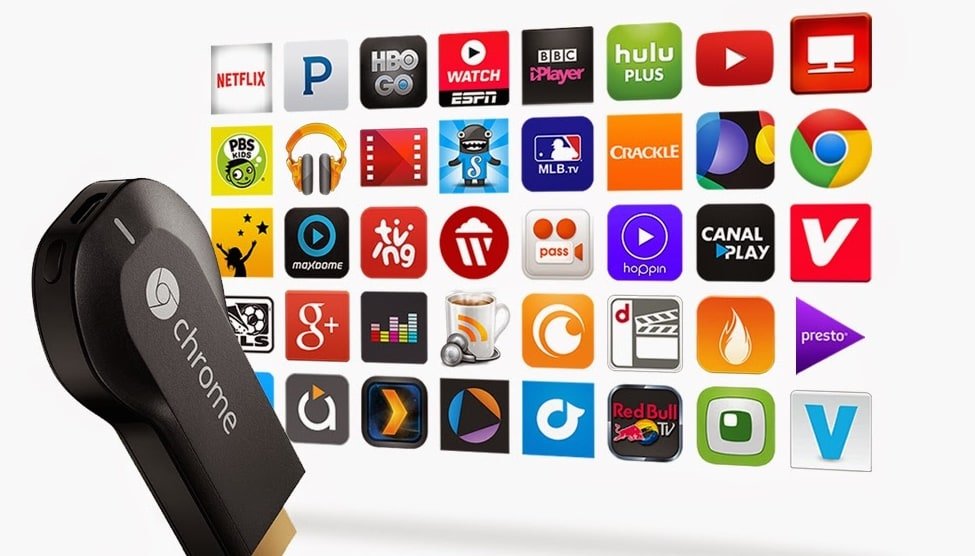
iptv stream guide: Chromecast with Google TV Setup
If you want to run an iptv stream smoothly on your Chromecast with Google TV, this step-by-step guide walks you through the best apps, setup methods and troubleshooting tips. Chromecast with Google TV is ideal for IPTV thanks to its responsive interface and access to the Google Play Store. Below you’ll find two recommended methods—Hot Player (recommended) and TiviMate—plus alternate app options and performance tips.
Quick Table of Contents
Why use iptv stream on Chromecast with Google TV?
Using an iptv stream on Chromecast with Google TV gives you a modern, smooth live-TV experience with access to apps like TiviMate, Hot Player and Smarters. Chromecast provides hardware acceleration, a familiar remote interface and Google Play access so you can install trusted IPTV clients quickly.
Before you begin
Make sure you have the following ready before you start the iptv stream setup:
- Your Chromecast with Google TV, connected to your TV and signed into a Google account.
- A stable internet connection (5GHz Wi‑Fi or wired using a USB-C Ethernet adapter is best).
- Your subscription information (server URL, username and password) from your provider.
- Access to the Google Play Store on your Chromecast (for secure app installation).
Method A — Hot Player installation (Recommended)
The Hot Player method is simple, reliable and works on many smart platforms. It’s recommended if you want an easy playlist upload process for your iptv stream.
Step 1: Install Hot Player
On your device, open the native app store (for Chromecast use the Google Play Store). Search for and install the Hot Player app. If Hot Player isn’t available in your store, check your provider or our User Guide for alternative install options.
Step 2: Find your MAC address
Open Hot Player on your TV. On the Hot Player home screen you’ll see a unique MAC address that looks like XX:XX:XX:XX:XX:XX. Write it down—this identifies your device when uploading playlists to the Hot Player service.
Step 3: Upload your playlist
From a browser on your computer or phone, visit https://hotplayer.app/upload. In the upload form:
- Paste the MAC address in the MAC field.
- Paste the M3U or playlist link from your welcome email into the Link field.
- Give the playlist a descriptive name (for example, “NordicIPTV.tv”).
- Click “Save” and return to your TV app.
Step 4: Restart and watch
Back in Hot Player on your Chromecast with Google TV, click the Refresh button. Your channels should load and the iptv stream will be available in the player—no complex configuration needed.
Method B — Install TiviMate for the best experience
If you want a fully featured, set-top-box-like experience for your iptv stream, TiviMate is the top choice. TiviMate offers a polished program guide (EPG), multiple playlists, favorites and channel grouping.
TiviMate vs other players
TiviMate provides a modern EPG and fast navigation that many users prefer over generic IPTV players. Note that advanced features require TiviMate Premium, unlocked through the TiviMate Companion app on Android.
Step 1: Install TiviMate
From your Chromecast home screen go to Apps > Google Play Store. Search for TiviMate IPTV Player and click “Install”. If you need a direct APK, the official TiviMate APK is available at TiviMateFree & PaidDownload, but using the Play Store is safer.
Step 2: Add your playlist (Xtream Codes)
Open TiviMate and click the big blue Add Playlist button. Choose the Xtream Codes option for the smoothest EPG integration.
Step 3: Enter subscription details
Enter the three fields as provided in your welcome email:
-
Server address: Include the full URL (starting with
http://orhttps://). - Username: Your IPTV username.
- Password: Your IPTV password.
Click “Next” and allow the app to load the playlist. When processing completes, select “Done”—you’re ready to watch your iptv stream in a sleek guide layout.
Step 4: Enjoy TiviMate Premium features
TiviMate Premium unlocks multi-playlist support, recording, favorites and advanced EPG options. To purchase, install the TiviMate Companion on your Android phone/tablet and follow the in-app purchase flow. For more details see our Features page or compare Subscription Pricing.
Alternative: IPTV Smarters Pro and other apps
If you prefer a simpler free option, IPTV Smarters Pro (also known as Smarters Player) is popular and easy to set up.
Install and login with Xtream Codes
Search for IPTV Smarters Pro or Smarters Player Lite in the Google Play Store and install. Open the app, select “Login with Xtream Codes API”, then add your Username, Password and Server URL. Click “Add User” to begin streaming your iptv stream immediately.
Other compatible apps and downloads
Depending on your needs and device, you may prefer other apps. Below are useful downloads and links:
- TiviMateFree & PaidDownload — TiviMate APK for sideloading.
- MYTVOnline+ (Mobile)Free & PaidDownload — Mobile client option.
- OTT NavigatorFree & PaidDownload — Advanced playlist manager.
- Smarters PlayerFree & PaidDownload — Alternate Smarters APK.
- StbEmuFreeDownload — STB emulator APK for advanced users.
- iMPlayer (Mobile)Free & PaidDownload and iMPlayer (TV)Free & PaidDownload — Cross-platform player options.
- SmartersFree & PaidGet — Smarters on iOS.
- StbEmu: Smart STBPaidGet and StbEmu: StbEmuTVFree & PaidGet — STB emulators for iOS.
- IBO PlayerPaidGet — LG app store option.
- Official Smarters downloads: SmartersFree & PaidGet, SmartersFree & PaidGet, and the web client at SmartersFree & PaidGet.
- Official Smart-STB: StbEmu: Smart STBPaidGet
Troubleshooting & common problems
Here are quick fixes for the most common issues when streaming an iptv stream on Chromecast with Google TV.
- Error processing playlist in TiviMate: Double-check the Server URL, Username and Password for typos. Most playlist errors come from incorrect credentials.
- Buffering or freezing: Use a 5GHz Wi‑Fi network or a wired connection via a USB-C Ethernet adapter. Reduce concurrent downloads or streaming on the same network.
- App not available in Play Store: If an app isn’t listed, check the provider guide or our FAQ. Manual APK installs require sideloading tools like Downloader and are more advanced.
- Slow EPG loading: Try removing unused playlists or limit the number of channels to reduce EPG processing time.
Tips to improve streaming performance
- Prefer wired Ethernet when possible to reduce latency and buffering.
- Use a high-quality router with QoS settings to prioritize streaming traffic.
- Keep your Chromecast firmware and IPTV apps up to date via the Play Store.
- Use the right player for your use case: Hot Player for simple playlist access, TiviMate for guide-driven viewing, Smarters for quick login and multi-device support.
- For advanced channel management and EPG mapping, consult the User Guide on our site.
When to contact support
If you still experience problems after following these steps, please Contact Us with details including which app you are using, a screenshot or error message, and your order number. Our support team can verify your account, check server status, or guide you through advanced fixes. You can also check updates or insights on our Blog or learn more About Us.
Additional resources and policies
Before you install third-party apps and APKs, review our legal pages and policies. For terms and conditions, see our Terms of Services. For privacy and data handling info, read the Privacy Policy. If you need account or purchase help, check our Return & Refund Policy and Pricing details.
FAQ
Q: Can I sideload apps on Chromecast with Google TV?
A: Yes, but sideloading requires extra steps like installing the Downloader app and enabling developer options. For most users, the Play Store is the safest option.
Q: Do I need TiviMate Premium?
A: TiviMate works without Premium, but Premium unlocks multi-playlist support, recording and advanced EPG features. Serious users will benefit from the subscription.
Q: Which app offers the best EPG for iptv stream?
A: TiviMate is widely regarded as offering the best EPG and user experience on Android TV and Chromecast with Google TV.
Images
Below are suggested images to include with your published guide to improve readability and help users during setup.


Final notes
This guide is designed to get your iptv stream running smoothly on Chromecast with Google TV using Hot Player, TiviMate or Smarters. If you need a quick walkthrough, our Home page links to the latest guides and resources. For more in-depth instructions, the User Guide and FAQ are excellent starting points.
If you’d like us to assist with setup, don’t hesitate to Contact Us. Enjoy your iptv stream on Chromecast with Google TV!