
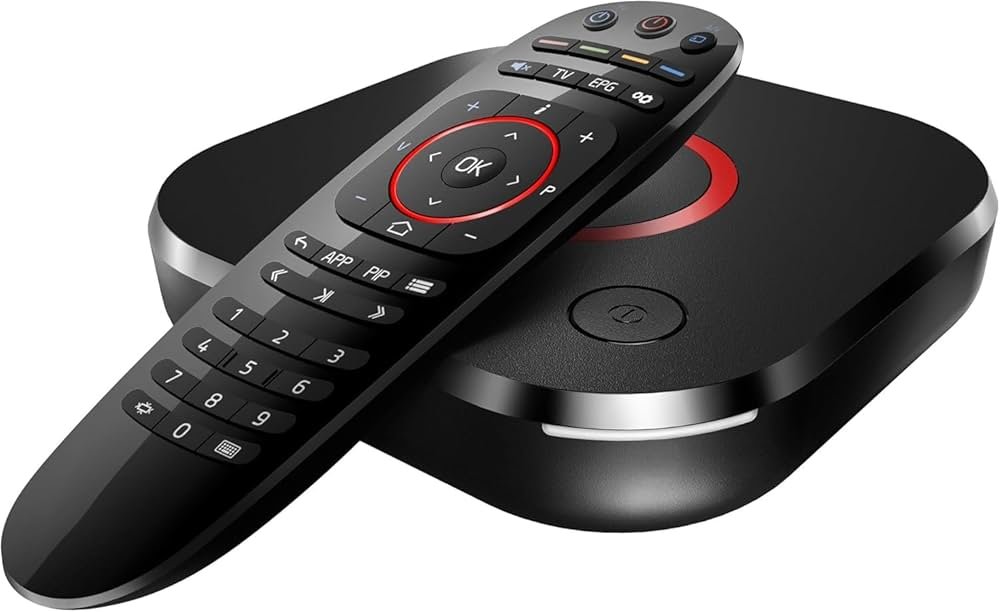
iptv enigma tv, enigma2 – Complete Setup Guide
This guide explains how to install and configure iptv enigma tv, enigma2 on Enigma2-based receivers such as Zgemma, VU+ and Dreambox. The recommended installation method is using an AutoScript via Telnet/SSH because it reliably creates a bouquet and configures channels for you. If AutoScript cannot be used, a manual M3U/bouquet conversion is provided as an advanced alternative.
Table of Contents
What is iptv enigma tv, enigma2?
iptv enigma tv, enigma2 refers to using IPTV channel lists and related middleware on Enigma2-based receivers. These devices run the Enigma2 image and support bouquets (channel groups), EPG importers, and plugin-based management. Popular Enigma2 boxes include Zgemma, VU+ and Dreambox models — all suitable for receiving IPTV channel lists delivered as M3U or installed automatically with scripts.

Before you begin — Requirements and preparation
Follow these prerequisites to ensure a smooth installation:
- Active IPTV subscription and the unique AutoScript command line tied to your subscription.
- Your Enigma2 box connected to the same LAN as your PC (for SSH/Telnet access).
- Terminal program (PuTTY on Windows; Terminal on macOS/Linux) and basic familiarity with SSH commands.
- Box model and firmware image (noting Zgemma, VU+ and Dreambox differences may matter).
- Make a backup of your current bouquets/channel lists in case you need to revert.
If you need official documentation or account links, visit the Home page or check the site User Guide for subscription specifics. For pricing or plan details, see the Pricing section and compare features at Features.
Method A: Installation with AutoScript (Recommended)
AutoScript is the fastest and most reliable method. The script will automatically create a new bouquet in your channel list and configure EPG sources when included.
Step 1 — Prepare and get your AutoScript
- Find your box IP address: Menu > Settings > System > Network > Device Settings on the Enigma2 box. Note the IP address (for example,
192.168.1.XX). - Send your IP address back to support (typically by replying to your order confirmation email). Support will provide the unique AutoScript command line tied to your subscription.
- Keep your order number and box model handy — support may request these.
Step 2 — Connect to your Enigma2 box (Telnet/SSH)
From a computer on the same network:
- Windows: open PuTTY and connect via SSH to
root@YOUR_BOX_IP_ADDRESS. - macOS / Linux: open Terminal and run
ssh root@YOUR_BOX_IP_ADDRESS. - If prompted for a password, try the default (often
root,admin, or blank). If unknown, check your box documentation or contact support.
Step 3 — Run the installation script
Once logged in, paste the full command line provided by support. The AutoScript command typically looks like this:
wget -O /etc/enigma2/iptv.sh "http://line.example.com/get.php?..." && chmod 777 /etc/enigma2/iptv.sh && /etc/enigma2/iptv.sh
Notes:
- Make sure you copy the full line including quotes.
- If you see
Permission denied, verify the script includeschmod 777(or run it manually). - Wait until the script completes; you will be returned to a blank command prompt.
Step 4 — Reboot and verify bouquets
Restart Enigma2 to load the new bouquet:
- Type
rebootin the SSH session and press Enter. - After the box boots, open your channel list and look for a new bouquet (for example, “Sweden IPTV” or the name provided by your service).
- Check playback on a few channels and confirm EPG availability.
Method B: Manual Installation with M3U File (Advanced)
Use this method only if AutoScript fails or if you prefer manual control.
- Use FTP (FileZilla) or a bouquet editor like DreamboxEDIT to manage bouquets.
- Upload the M3U file you received to an online bouquet converter or use a local converter tool.
- Download the converted bouquet files and upload them to
/etc/enigma2/on the box. - Set proper permissions (e.g.,
chmod 644orchmod 755) and reboot the GUI.
Manual conversion is more complex because you must ensure service references and service numbering match your image and plugins. Always keep a backup of original bouquet files.
Recommended player apps and companion tools
For mobile and TV clients, several apps work well with IPTV streams that you curate on Enigma2 or stream to other devices. Below are options with direct download links (anchor text and links are provided for convenience):
MYTVOnline+ (Mobile)Free & PaidDownload — Mobile-focused client with playlist support.
OTT NavigatorFree & PaidDownload — Flexible Android player for IPTV playlists.
Smarters PlayerFree & PaidDownload — Popular Android IPTV player APK.
StbEmuFreeDownload — STB emulator for Android, useful for testing STB-style playlists.
TiviMateFree & PaidDownload — Excellent for Android TV devices.
iMPlayer (Mobile)Free & PaidDownload — Mobile version of iMPlayer.
iMPlayer (TV)Free & PaidDownload — TV-optimized version of iMPlayer.
SmartersFree & PaidGet — iOS Smarters Player Lite on the App Store.
StbEmu: Smart STBPaidGet — Smart STB on the App Store.
StbEmu: StbEmuTVFree & PaidGet — StbEmuTV on iOS.
IBO PlayerPaidGet — LG TV app store entry for IBO Player.
SmartersFree & PaidGet — Official Smarters downloads and web app.
StbEmu: Smart STBPaidGet — Smart-STB official information and downloads.
SmartersFree & PaidGet — Windows app download for Smarters.
SmartersFree & PaidGet — Smarters web/HTML5 client.
Troubleshooting & Common Problems
Here are frequent issues and quick fixes:
No channels showing after restart: The most common cause is an incomplete AutoScript copy. Re-run the command and ensure all quotes and characters are included.
Permission denied: Verify the command includeschmod 777 /etc/enigma2/iptv.sh(orchmod 755where appropriate).
EPG not showing: Many AutoScripts install EPG automatically. If EPG is missing, install the EPG-Importer plugin, add the EPG source manually, or use the EPG XMLTV file included with the service.
Channel fails to play: Check network connectivity, test the same stream in TiviMate or VLC, and confirm your subscription is active.
If problems persist, gather logs, note any terminal error messages, and include your box model and order number when you contact support via the Contact Us page.
Maintenance, EPG and plugin tips
To keep your Enigma2 box running smoothly:
- Regularly update your image/plugins from trusted feeds for Zgemma/VU+/Dreambox.
- Configure EPG-Importer properly and schedule nightly refreshes for accurate guides.
- Clear old bouquets you do not use to reduce GUI load.
- Create a backup of
/etc/enigma2/before performing major changes.
When to contact support
Contact support if:
- Your AutoScript link does not work after multiple attempts.
- Playback works in external players but not in your box after installation.
- You need help with EPG sources or plugin installation.
Use the FAQ for common questions, read more on the Blog for updates, or visit About Us to learn about the team. For legal notes regarding service usage, consult the Privacy Policy, Terms of Services, and the Return & Refund Policy.
Useful links (Internal & External)
Quick access resources:
- Official site: Home
- Features overview: Features
- Pricing details: Pricing
- User guide and support docs: User Guide
- Contact support: Contact Us
Final checklist and best practices
Before you finish, confirm everything on this short checklist:
- Saved your box IP and order number.
- Received and copied the full AutoScript exactly.
- Ran the script and rebooted (type
reboot). - Verified the new bouquet appears and channels play.
- Installed EPG-Importer if EPG is missing.
- Kept a backup of original bouquets and configuration.
If you still need hands-on help, visit the Contact Us page and include your box model and order number. For general questions check the FAQ or browse tutorials on the Blog. Good luck — with the AutoScript method most users will have their iptv enigma tv, enigma2 bouquets installed and working in minutes.
Note: This guide assumes you have permission to use all content and streams. Respect intellectual property and local laws when using IPTV services.