
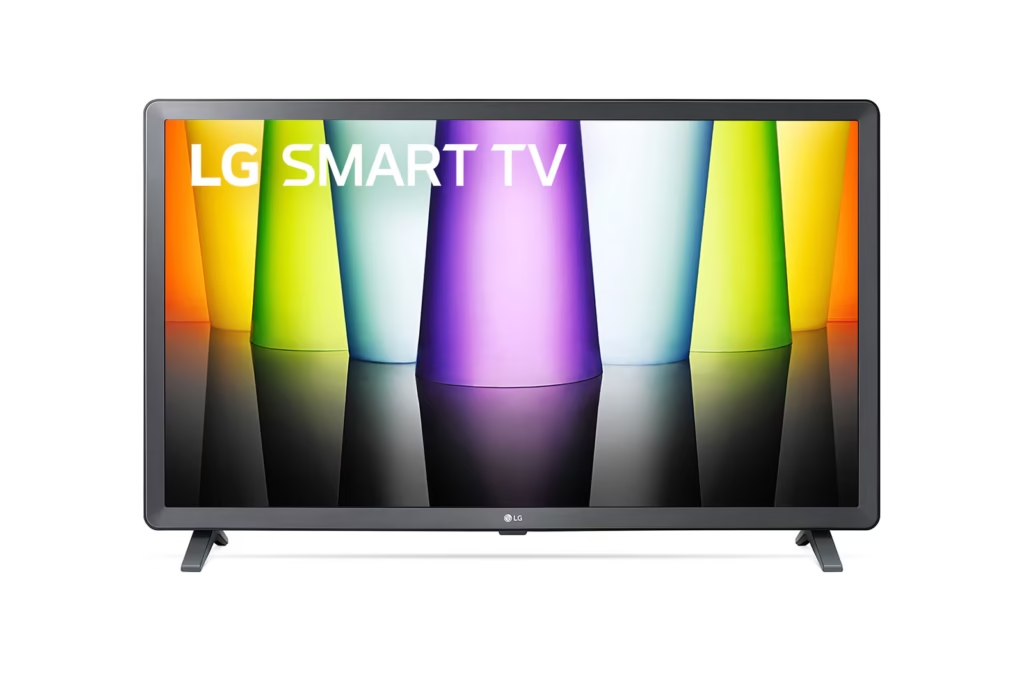
IPTV LG: Complete webOS Setup Guide for Your Smart TV

Table of Contents
Introduction — What is IPTV LG on webOS?
IPTV LG refers to running an Internet Protocol Television (IPTV) service on LG Smart TVs that use webOS. Unlike Android or Fire TV platforms, LG’s webOS relies on apps available in the LG Content Store to play IPTV channel lists (typically delivered as an M3U link). This guide walks you through the most reliable methods—Hot Player, Smart IPTV, and Flix IPTV—so you can quickly load your subscription and start watching.
Before You Begin: Locate Your M3U Link
To follow this guide you need your unique M3U link. This link is provided in the welcome email you received after your IPTV purchase and looks like a long URL, for example:
http://line.example.com/get.php?username=XXXX&password=YYYY&type=m3u_plus&output=ts
Keep that full URL ready — you will paste it into the app upload page during setup. If you can’t find it, check your welcome email or visit the User Guide and FAQ pages, or Contact Us for assistance.
Hot Player: Recommended Method for IPTV LG (webOS)
Why choose Hot Player for IPTV LG? Hot Player is simple, fast, and widely supported across webOS devices—making it a top pick for stable playback. Follow the steps below to install and upload your M3U playlist.
Step 1 — Install Hot Player
Open the LG Content Store on your TV, search for Hot Player and install it. If your TV store does not show the app, you may need to check regional availability or use an alternative method below.
Step 2 — Find Your TV MAC Address
Launch the Hot Player app. On its main screen you will see a unique MAC address (format: XX:XX:XX:XX:XX:XX). Write it down exactly as shown — you will need it when uploading your playlist online.
Step 3 — Upload Your Playlist
On a computer or mobile browser go to https://hotplayer.app/upload. Fill the fields like this:
MAC: paste the TV MAC address
Link: paste your full M3U URL from the welcome email
Name: enter any name (for example: “NordicIPTV.tv”)
Click Save. The playlist is now assigned to your TV MAC address.
Step 4 — Restart and Watch
Return to the Hot Player app on your LG TV and click Refresh. The app should display a “Loading playlist…” message followed by channel categories and streams. If the list fails to load, confirm the M3U link was copied fully and that the MAC address is correct.
Smart IPTV (SIPTV) Method for IPTV LG
Smart IPTV (commonly called SIPTV) is another popular option for IPTV LG. It is stable and widely used but requires a one-time activation fee after a free trial.
App Cost and Activation
SIPTV provides a free trial on installation; to permanently activate the app for a particular TV you pay a small one-time fee on the developer’s website. This activation is separate from your IPTV subscription.
Step-by-step Upload for Smart IPTV
- Open the LG Content Store, search for Smart IPTV, install and launch the app.
- When the app opens, write down the TV MAC address displayed (format:
aa:bb:cc:11:22:33). - On a computer or phone visit https://siptv.app/mylist/.
- Under “Upload playlist File or URL” enter your TV MAC and paste the full M3U link in the URL field, then click Send.
- Restart Smart IPTV on your TV; your channels should load.
Flix IPTV Method for IPTV LG
Flix IPTV offers a modern UI and useful features for IPTV LG users. Setup requires both a MAC address and a device key.
How to Get Your Device Key and MAC
Install Flix IPTV from the LG Content Store and open the Settings > User Account section. There you will find the MAC Address and Device Key. Record both values.
Uploading Your M3U to Flix IPTV
On your computer or phone go to https://flixiptv.eu/mylist. Enter the MAC address and Device Key, paste your M3U link into the URL field and submit. Restart the Flix IPTV app on the TV to begin loading channels.
Other Supported Apps & Downloads (Alternatives)
If your preferred app is not available or you want to test other players, here are several commonly used apps and their download pages. Use these only when the app is officially supported for your platform.
MYTVOnline+ (Mobile)Free & PaidDownload — mobile client useful for Android devices.
OTT NavigatorFree & PaidDownload — feature-rich Android IPTV player.
Smarters PlayerFree & PaidDownload — Android app for many set-top boxes.
StbEmuFreeDownload — emulator for STB-like experience.
TiviMateFree & PaidDownload — popular Android IPTV player with excellent EPG support.
iMPlayer (Mobile)Free & PaidDownload and iMPlayer (TV)Free & PaidDownload — apps with mobile and TV versions.
SmartersFree & PaidGet — iOS Smarters Player Lite on the App Store.
StbEmu: Smart STBPaidGet and StbEmu: StbEmuTVFree & PaidGet — iOS STB emulators.
IBO PlayerPaidGet — LG app store listing for IBO Player.- Multiple download options for SmartersFree & PaidGet, StbEmu: Smart STBPaidGet, and direct desktop SmartersFree & PaidGet or web player at SmartersFree & PaidGet.
Common Troubleshooting for IPTV LG on webOS
“No playlist uploaded” or “Check playlist URL”: Re-copy the full M3U link; missing a single character will break the list.
App shows “Loading playlist…” forever: Verify MAC address and that you used the correct upload page for the app.
Buffering or freezing: Prefer a wired Ethernet connection. If on Wi-Fi, improve signal or move the router closer.
App not in LG Content Store: Check regional availability or try an alternate app listed above.
If problems persist, include the following when you Contact Us: which app you used, your TV model, and your order number so support can assist efficiently.
Tips for Best Performance (Network, Quality, Remote Control)
- Use a wired connection for the most stable streaming.
- Choose HD streams only if your internet speed supports them (minimum 10 Mbps for reliable 1080p).
- Keep your webOS and apps updated via the LG Content Store to avoid compatibility issues.
- Organize your playlists and favorite channels inside the player app for fast access.
Security, Privacy & Legal Notes for IPTV LG
Use only legally obtained IPTV subscriptions. Protect your credentials and never share your M3U link publicly. For our policies, see our Privacy Policy, Terms of Services, and Return & Refund Policy. You can also learn more about our company on the About Us page.
Resources, Support and Useful Links
For detailed tutorials and updates check our Blog, review the Features and Pricing sections on our Home page, or browse the User Guide for step-by-step documentation.
FAQ — Quick Answers
Can I install Android APKs on my LG TV? No. LG webOS is a closed platform and cannot run Android (.apk) files. Use apps available in the LG Content Store.
What if my channels are slow? Try wired Ethernet, reduce concurrent devices on your network, or select lower stream quality.
Conclusion
Setting up IPTV LG on webOS is straightforward when you have your M3U link and use one of the supported apps. Hot Player is the recommended approach for most users because of its simplicity, but Smart IPTV and Flix IPTV are excellent alternatives. Keep your TV and apps updated, use a wired connection when possible, and reach out via our Contact Us page if you need further assistance. For more tutorials and resources, visit our Blog or check the User Guide.
If you found this guide helpful, please visit our Home page to explore services and current offers.