
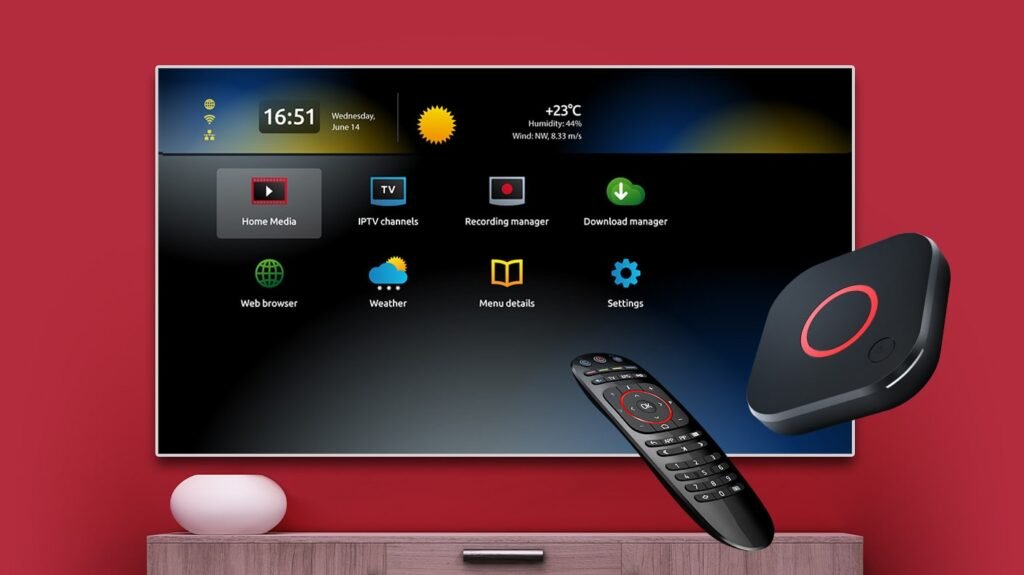
MAG IPTV Box Setup Guide — MAG Box IPTV Installation

Table of Contents
mag iptv box — Overview and Supported Models
The mag iptv box is a popular line of set-top boxes from Infomir used for stable IPTV delivery across many providers. This guide covers configuration for all MAG models, including MAG 254, MAG 322, MAG 420 and MAG 524. The installation relies on the box’s internal portal (sometimes called the inner portal or system settings), which is the most reliable way to set up an IPTV subscription on MAG devices.
Why choose a MAG IPTV Box
MAG boxes are widely used for IPTV because they offer a dedicated hardware platform with a simple portal-based setup, good compatibility with IPTV portals, and relatively low maintenance. If you prefer a plug-and-play approach with consistent portal loading and minimal third-party app dependencies, a MAG box is an excellent choice.
Before you begin
What you need
- Your MAG box (any model: MAG 254 / 322 / 420 / 524) connected to your TV via HDMI.
- A stable internet connection. We strongly recommend using a wired Ethernet connection for reliability.
- Your personalized Portal URL (you will receive this from us after you send your MAC address).
- Your MAC address (found on a sticker on the bottom of the MAG unit).
Step-by-step Installation (Inner Portal / System Settings)
Follow these steps carefully. The portal URL must be entered exactly as provided — any typo will cause loading errors.
1. Enter the Inner Portal
Start your MAG box and wait for the first loading screen. As soon as you see it, press and hold the SET or MENU button on the remote for several seconds. The inner portal (System Settings) should open. If you are already inside an old portal, restart the box and hold the button during the restart to force the inner portal to appear.
2. Configure Server Settings
Use the remote’s arrow keys to navigate. Find and select “Servers and Portals” (or simply “Servers” depending on your firmware), then select “Portals” to access the portal configuration screen.
3. Enter your Portal details
There are fields for Portal 1 and Portal 2. Configure Portal 1 as follows:
Portal 1 name: Give it a recognizable name such as “Sweden IPTV” or any label you prefer.
Portal 1 URL: Enter EXACTLY the Portal URL we sent to you (including the protocol like http://, all slashes and dots). Example format: http://line.example.com/c/
After entering both fields, press “OK” to save, then press the EXIT button on the remote to return to the previous menu.
4. Save and Restart
To apply settings, press EXIT again to go to the System Settings root. Select “Reboot device” and confirm by pressing “OK” twice. The box will restart and load your configured portal. The first portal loading may take 30–90 seconds while the box authenticates and downloads available channels and VOD content.
Send Us Your MAC Address First! (Important)
⚠️ IMPORTANT: Before the portal will work on your MAG box you must send us the MAC address of the unit so we can register it in our system. Without registration you will see an error such as “STB Blocked”.
How to find and send the MAC address
The MAC address sticker is located on the bottom of your MAG box. It always starts with 00:1A:79: and looks like 00:1A:79:XX:XX:XX. Reply to your order confirmation email with the full MAC address exactly as shown. Once we register and activate your MAC we will email you the personalized Portal URL you must enter in Step 3.
Recommended Players & Apps (optional alternatives)
While the MAG box internal portal is the recommended, most stable method, you may sometimes want to use third-party IPTV players on other devices. Below are popular apps and where to get them. Use these if you run IPTV on Android TV boxes, Fire Stick, or mobile devices.
MYTVOnline+ (Mobile)Free & PaidDownload — popular for mobile and Android devices.
OTT NavigatorFree & PaidDownload — advanced playlist and EPG support.
Smarters PlayerFree & PaidDownload — widely used on Android devices.
StbEmuFreeDownload — an emulator for portal-based experiences on non-MAG devices.
TiviMateFree & PaidDownload — a top IPTV player for Android TV devices.
iMPlayer (Mobile)Free & PaidDownload — mobile variant for iOS/Android.
iMPlayer (TV)Free & PaidDownload — TV variant for Android TV boxes.
SmartersFree & PaidGet — iOS version on the App Store.
StbEmu: Smart STBPaidGet — Smart STB on the App Store.
StbEmu: StbEmuTVFree & PaidGet — StbEmuTV on the App Store.
IBO PlayerPaidGet — for LG Smart TVs.
SmartersFree & PaidGet — official Smarters download page.
StbEmu: Smart STBPaidGet — Smart STB official page.
SmartersFree & PaidGet — Windows app download.
SmartersFree & PaidGet — web TV player option.
These alternatives are useful if you run your IPTV on other devices or want to test playlists and EPG functionality. However, for MAG boxes the internal portal remains the recommended method.
Troubleshooting & Common Problems
Below are the most frequent issues with MAG portal setup and how to fix them.
STB Blocked / STB is blocked
If you see “STB Blocked” it means your MAC address is not registered or was entered incorrectly. Double-check the MAC on the sticker and send it to us via your order confirmation email. You can also reach out via our Contact Us page for assistance. Always include your order number and the MAC address exactly as printed.
Page loading error
This usually occurs for one of two reasons: (1) the portal URL has been mistyped — return to Step 3 and carefully re-enter the URL exactly as provided; or (2) there is no network connectivity. If the box has no internet, check your Ethernet cable and router settings.
Can’t access System Settings
Timing is key. Power-cycle the box (unplug, wait 5 seconds, plug back in) and as soon as the first image appears press and hold the MENU or SET button repeatedly until the inner portal opens. Firmware differences can change the exact timing; patience and multiple attempts usually resolve this.
Additional Resources & Support
If you need setup instructions, FAQs or general product information, we maintain multiple resources and guides on our website. Visit Home to start, then explore key sections including Features, Pricing, and the detailed User Guide. For quick answers check our FAQ. If you still need help, use our Contact Us page and include your order number and MAC address so support can assist quickly.
We also publish regular tips and updates on our Blog, and you can learn more about the team and our vision on the About Us page. Be sure to read our Privacy Policy, Terms of Services, and Return & Refund Policy for full details on our policies.
Final Checklist
- MAC address located and sent to support (found on bottom sticker).
- Portal URL received via email after MAC registration.
- MAG box connected via Ethernet and HDMI to TV.
- Portal URL entered exactly under Portal 1, saved and device rebooted.
- If errors occur, verify portal spelling, cable connection, and that MAC is activated.
If you followed this guide step-by-step and still experience issues, please reach out through our Contact Us form, include your order number and MAC address, and our support team will help resolve the issue quickly.
Enjoy your MAG IPTV box and happy viewing!