
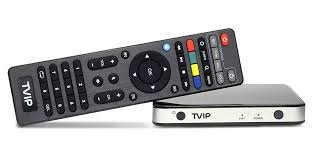
tvip box IPTV Setup Guide: Easy Portal Installation
If you just bought a tvip box and want a quick, reliable IPTV setup, this guide walks you through every step — from MAC registration to portal configuration and troubleshooting. If you prefer to browse our general resources first, visit our Home page for an overview.
Table of Contents
Why choose the TVIP Box for IPTV?
The TVIP Box is a stable, hardware-based IPTV receiver designed for reliable playback of live channels, VOD and series. It supports portal-based access and works well with wired networks, making it ideal for households that value steady streams and minimal buffering. For more details about subscription plans and what’s included, check our Features and Pricing sections.
Send Us Your MAC Address First (Activation Required)
Important: Before the portal will connect, you must send us your TVIP Box MAC address so we can activate your subscription. The portal link we provide is MAC-locked and will not work until the MAC is registered in our system.
Find your MAC address
The MAC address is printed on a sticker under the TVIP Box (format example: 00:1A:79:XX:XX:XX), and can also be found in the box’s system settings under Device Information. Once you have it, reply to your order confirmation email with the MAC address.
Send the address to us
If you have questions or prefer to reach out directly, use our Contact Us page. After we receive and register the MAC address, we will email you a personalized Portal URL you must enter into the box during setup.
tvip box — Step-by-Step Installation
This section explains how to install and configure your TVIP Box once you’ve received your Portal URL. Follow each step carefully for a smooth setup.
Before You Begin (Checklist)
- Your TVIP Box connected to the TV with an HDMI cable.
- A stable internet connection (wired network recommended).
- Your personalized Portal URL (sent after MAC registration).
- The TVIP remote control and power adapter.
- Optional: Keep our User Guide or FAQ open if you need additional screenshots.

Step 1: Connect and Start Your TVIP Box
Connect your TVIP Box to the TV via HDMI. If possible, use a network cable for the most reliable connection—plug it into the Ethernet port on the box. Connect power and switch on both the TV and box. Wait for the main menu to appear on-screen.
Step 2: Open System Settings
Use the remote to navigate: go to the main menu and select Settings (gear icon). If you plan to use Wi‑Fi instead of Ethernet, choose Network Settings and connect to your network here.
Step 3: Configure the IPTV Portal
In Settings, navigate to the TV section. Look for TV Source and select IPTV. From there, select Portal Settings or Add Portal (labeling can vary slightly by firmware).
Step 4: Enter Your Portal Details Carefully
Enter the exact Portal URL we emailed you into the Portal URL field — every character matters (periods, slashes and capitalization). Give it a friendly Portal Name such as “NordicIPTV.tv” and set Use as default to ON or Yes. Press Save or OK to store the settings. If you need detailed assistance during this step, our Blog has articles about common portal fields and examples.
Step 5: Restart the Box
After saving, the box usually requires a reboot to load the new portal. Use the Reboot/Restart option in Settings, or press and hold the power button on the remote and choose Restart. Allow the box to boot fully — this can take up to a minute.
Step 6: Enjoy Channels, VOD and Series
Once restarted, your TVIP Box should auto-connect to the portal and load the channel list and VOD library. Navigate the interface with your remote to explore live TV, catch-up, movies and series.
Recommended Player Apps and Downloads
Some users like to pair their portal with third-party players or companion apps on mobile and TV platforms. Below are popular player options and direct download links. These apps can help on-the-go viewing, backup playback, or devices that don’t use a hardware TVIP Box.
MYTVOnline+ (Mobile)Free & PaidDownload — Android mobile/phone friendly player.
OTT NavigatorFree & PaidDownload — flexible EPG and playlist support.
Smarters PlayerFree & PaidDownload — popular Android APK.
StbEmuFreeDownload — STB emulator for custom portal testing.
TiviMateFree & PaidDownload — excellent Android TV IPTV player.
iMPlayer (Mobile)Free & PaidDownload and iMPlayer (TV)Free & PaidDownload — modern players with strong codec support.- iOS and Smart TV options: SmartersFree & PaidGet, StbEmu: Smart STBPaidGet, and StbEmu: StbEmuTVFree & PaidGet.
- LG and other Smart TV stores: IBO PlayerPaidGet.
- Additional Smarters downloads and web player links: SmartersFree & PaidGet, StbEmu: Smart STBPaidGet, SmartersFree & PaidGet, and SmartersFree & PaidGet.
Note: always download apps from trusted sources (official stores or the publisher site) and follow the app developer’s installation instructions.
Troubleshooting & Common Problems
If channels fail to load or you see a Portal error, try these quick fixes before contacting support.
Double-check the Portal URL: Re-enter the Portal URL exactly as provided (typos are the most common issue).
Verify Internet connectivity: Confirm the box can access the internet — try Ethernet for best results.
Restart everything: Unplug your router and the TVIP Box for 30 seconds. Power the router first, wait until online, then start the TVIP Box.
Check MAC registration: Ensure you sent the correct MAC address and we have confirmed registration in our confirmation email.
Test with a different player: If available, use one of the mobile or TV apps above to verify whether the portal and subscription are active.
If these steps don’t resolve the issue, gather your order number and the TVIP Box MAC address and reach out via our Contact Us page so our support team can diagnose the problem quickly.
Frequently Asked Questions (FAQ)
For a longer list of common questions and answers, visit our FAQ page. Below are quick answers to frequent queries:
Q: How long until my portal is active after sending the MAC?
A: Typically within a few minutes to 24 hours, depending on support queue.
Q: Can I use the portal on multiple devices?
A: This depends on your subscription package. Check Pricing or contact support.
Q: What if the MAC on the sticker differs from the system?
A: Use the MAC from the system settings if the sticker is damaged — include both in your message if unsure.
Need More Help? Contact Support
If you need guided assistance or haven’t received your Portal URL after sending the MAC, please contact us through the Contact Us page and include your order number and MAC address for fastest resolution. You can also read setup walkthroughs in the User Guide or browse helpful posts in our Blog.
Legal & Policies
Before using the service, please review our policies: Privacy Policy, Terms of Services, and Return & Refund Policy. For questions about billing or refunds, consult the Pricing section or get in touch via Contact Us.
If you are new and want to learn more about our company and offerings, visit About Us.
Thank you for choosing our service — enjoy your TVIP Box and the channels, movies and series it unlocks. If you run into any problems, the FAQ and User Guide are great first stops, and our support team is ready to help via the Contact Us page.