
M3U Playlist: 7 Powerful Ways to Use & Convert Your Files
Need to extract Xtream Codes from your M3U playlist URL? Use our free converter tool below to instantly get your server credentials, then keep reading to master everything about M3U files for IPTV streaming.
🔄 Free M3U Playlist to Xtream Converter
Extract your Xtream Codes credentials from any M3U playlist URL instantly
Supports: Standard Xtream M3U URLs with username/password parameters and path-based formats (/username/password/)
Are you struggling to understand what an M3U playlist is or how to use it effectively? You’re not alone. Millions of IPTV users worldwide deal with M3U files daily, yet most don’t realize the incredible potential these simple text files hold. Whether you’re setting up your first IPTV service or looking to extract Xtream Codes credentials from your M3U playlist URL, this comprehensive guide covers everything you need to know.
An M3U playlist serves as the backbone of modern streaming setups, connecting your media player to thousands of live channels and on-demand content. By the end of this guide, you’ll master the art of working with M3U files, understand different playlist formats, and know exactly how to configure your streaming devices for the best experience.
📑 Table of Contents
What is an M3U Playlist File?
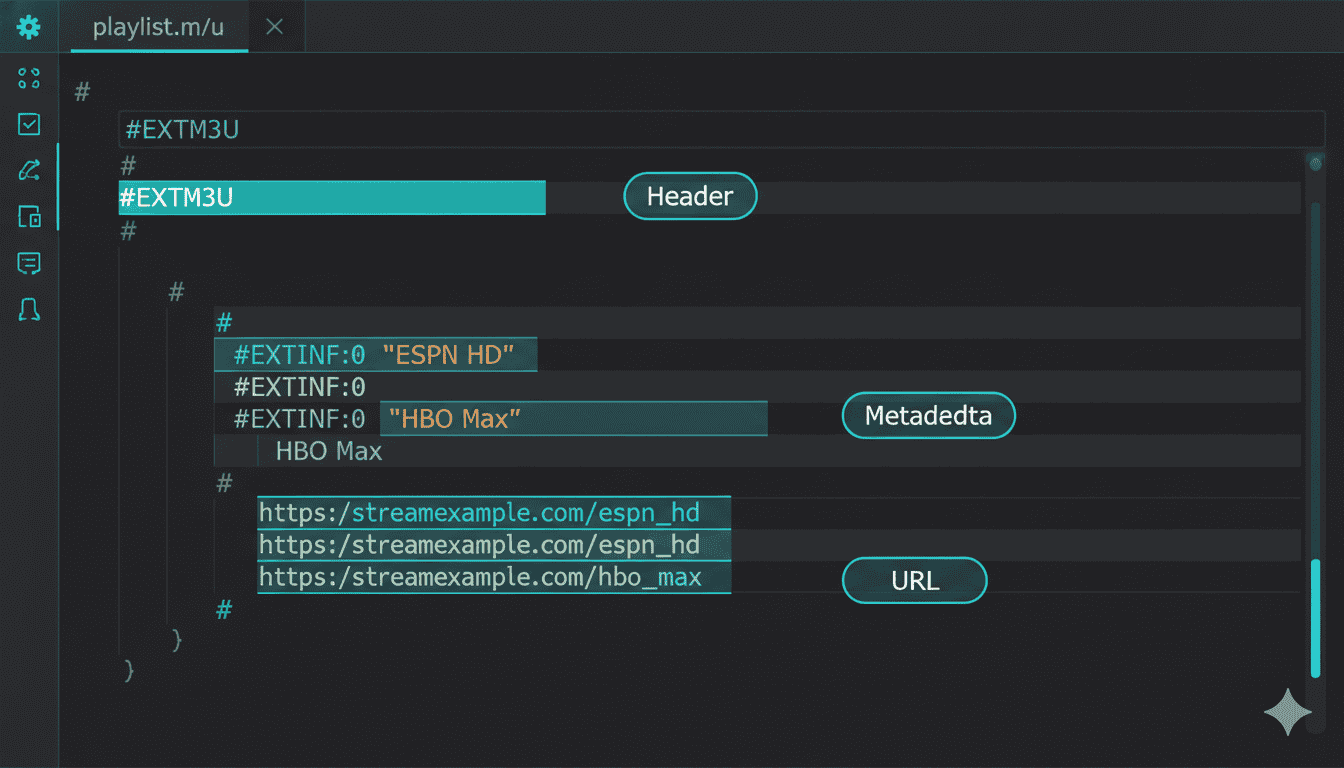
An M3U playlist is a plain text file that contains references to media files or streaming URLs. Originally developed for MP3 audio files (hence the name “MP3 URL”), the format has evolved dramatically to become the standard for IPTV streaming services worldwide. The file extension can be either .m3u for standard playlists or .m3u8 for UTF-8 encoded versions that support international characters.
When you open an M3U file in a text editor, you’ll see a structured list of URLs and metadata that tells your media player where to find each channel or video. This simple yet powerful format allows IPTV providers to deliver thousands of channels through a single file that’s easy to update and maintain.

💡 Quick Fact: A typical M3U playlist from an IPTV provider can contain anywhere from 1,000 to 50,000+ channels, all organized with categories, logos, and electronic program guide (EPG) information.
Basic M3U Structure
Every M3U playlist begins with the #EXTM3U header tag, followed by entries for each media item. Here’s what a simple M3U playlist structure looks like:
Why M3U Playlists Matter for Modern Streaming
The M3U format has become essential to the streaming ecosystem for several compelling reasons. According to Statista’s streaming research, over 80% of internet users worldwide consume video content through streaming services, and M3U files play a crucial role in content delivery for many platforms.
Unlike proprietary streaming formats that lock you into specific applications, M3U playlists offer universal compatibility. Whether you’re using VLC Media Player, Kodi, TiviMate, or any other IPTV application, your M3U file will work seamlessly across all platforms. This flexibility makes M3U the preferred format for cord-cutters and streaming enthusiasts who want control over their viewing experience.
Key Benefits of M3U Format
The M3U playlist format provides exceptional value through its simplicity and universal support. First, it offers cross-platform compatibility, working on Windows, macOS, Linux, Android, iOS, and smart TVs without modification. Second, M3U files are lightweight and easy to share, typically just a few kilobytes in size even when containing thousands of entries. Third, the format supports extended metadata including channel logos, categories, and EPG data for a rich user experience.
7 Powerful Ways to Use Your M3U Playlist
Understanding the versatile applications of M3U playlists opens up a world of streaming possibilities. Here are seven proven methods to maximize your M3U file experience.
1. Direct URL Loading in Media Players
The most straightforward way to use an M3U playlist is loading it directly into a compatible media player. Applications like VLC, PotPlayer, and IINA allow you to paste your M3U URL directly into their network stream function. Simply copy your M3U playlist link, open your player’s “Open Network Stream” option, and paste the URL. Within seconds, you’ll have access to your entire channel lineup.
2. Converting to Xtream Codes Format
Many premium IPTV applications like TiviMate, IPTV Smarters, and XCIPTV perform better with Xtream Codes credentials rather than raw M3U files. Converting your M3U URL to Xtream format extracts the server address, username, and password, enabling features like catch-up TV, series organization, and faster channel switching. Use the converter tool at the top of this page to handle this process automatically.
3. Importing into Kodi with PVR IPTV Simple Client
Kodi users can transform their home theater experience by importing M3U playlists through the PVR IPTV Simple Client addon. This integration brings live TV functionality directly into Kodi’s interface, complete with EPG support and recording capabilities. Navigate to Settings, then Add-ons, and search for PVR IPTV Simple Client to get started.
4. Creating Custom Channel Lists
Power users often create custom M3U playlist files by editing the original file to include only their preferred channels. This reduces loading times and creates a personalized viewing experience. Open your M3U file in any text editor, remove unwanted entries, and save with the same extension. Your streamlined playlist will load faster and be easier to navigate.
5. Setting Up on Smart TVs
Modern smart TVs from Samsung, LG, and other manufacturers support M3U playlist playback through apps like Smart IPTV, SS IPTV, and OTTPlayer. Upload your M3U URL to these applications, and your TV becomes a fully-featured IPTV receiver without additional hardware. For detailed instructions, check our complete Enigma2 IPTV setup guide which covers various receiver configurations.
6. Mobile Streaming Setup
Your M3U works perfectly on mobile devices through apps like GSE Smart IPTV, IPTV Smarters, and Perfect Player. Simply enter your M3U URL or Xtream credentials in the app settings, and you can watch your channels anywhere with an internet connection.
7. Automated Playlist Management
Advanced users leverage M3U management tools to automatically update, merge, and organize multiple playlists. Tools like m3u4u.com and xtream-editor.com provide web-based interfaces for managing complex channel lineups without manual file editing.
Understanding Different M3U Formats
Not all M3U files are created equal. Understanding the various formats helps you choose the right one for your specific application and ensures optimal compatibility with your chosen media player.
Standard M3U Format
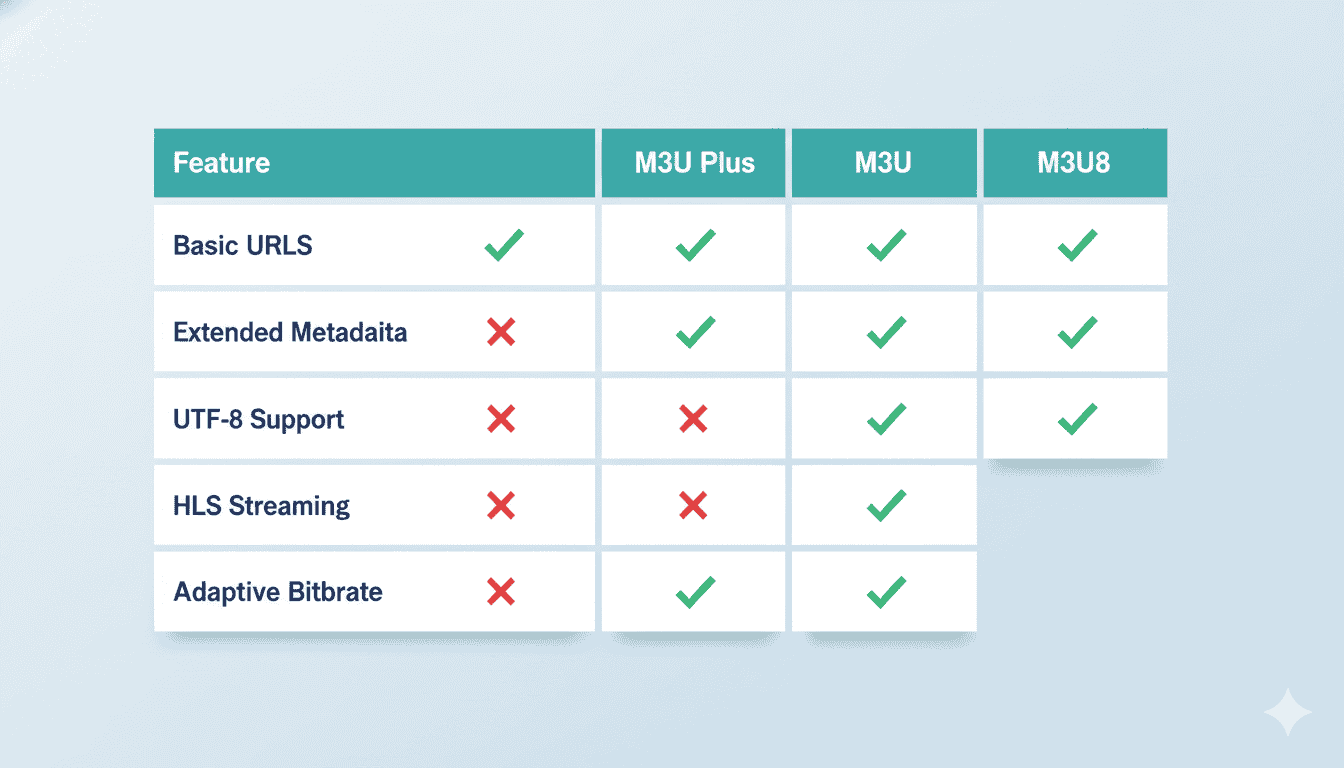
The basic M3U format contains simple file paths or URLs, one per line. While functional, this format lacks metadata like channel names and categories. It’s primarily used for local media collections rather than IPTV streaming.
M3U Plus (Extended M3U)
M3U Plus, also known as Extended M3U, includes the #EXTINF directive that provides rich metadata for each entry. This format supports channel names, durations, logos (tvg-logo), channel IDs (tvg-id), and group categories (group-title). IPTV providers exclusively use this enhanced format for their M3U deliveries.
M3U8 (HLS Playlist)
The M3U8 format uses UTF-8 encoding and is essential for HTTP Live Streaming (HLS) protocols. According to Apple’s HLS documentation, this format enables adaptive bitrate streaming, automatically adjusting video quality based on your connection speed. Many modern IPTV services deliver content through M3U8 streams for optimal viewing quality.
Common M3U Mistakes to Avoid
Even experienced users make errors when working with M3U files. Avoiding these common pitfalls ensures smooth streaming and prevents frustrating troubleshooting sessions.
Mistake 1: Using Expired or Invalid URLs
M3U links from IPTV providers often include authentication tokens that expire. If your playlist suddenly stops working, request a fresh M3U URL from your provider rather than troubleshooting individual channels. Quality providers like NordicTV offer easily renewable playlist links with 35,000+ channels and reliable uptime.
Mistake 2: Incorrect Character Encoding
Saving M3U files with wrong encoding causes channel names to display incorrectly or streams to fail entirely. Always use UTF-8 encoding when editing M3U files, especially for channels with international characters in their names.
Mistake 3: Ignoring EPG Configuration
Many users load their M3U without configuring the accompanying EPG (Electronic Program Guide) URL. Without EPG data, you won’t see program schedules, descriptions, or upcoming shows. Always request both the M3U and EPG URLs from your provider for the complete experience.
Mistake 4: Sharing Playlist URLs Publicly
Your M3U URL contains your unique credentials. Sharing it publicly allows others to use your subscription, potentially leading to account suspension. Treat your playlist URL like a password and never post it on public forums or social media.
⚠️ Security Warning: Never share your M3U URL publicly. It contains your authentication credentials and sharing can result in service termination or unauthorized access to your account.
M3U Best Practices for Optimal Streaming
Follow these proven strategies to maximize your M3U experience and enjoy buffer-free, high-quality streaming.
Keep Your Playlist Updated
IPTV providers regularly update their channel lineups, server addresses, and stream URLs. Update your M3U weekly or enable auto-update features in your IPTV application to ensure all channels remain functional. Most quality services provide dynamic playlist URLs that update automatically.
Use Appropriate Applications
Match your M3U with the right application for your device. TiviMate excels on Android TV, IINA works beautifully on macOS, and VLC provides universal compatibility. For Enigma2 devices like Zgemma and VU+, check our detailed setup tutorial that covers AutoScript installation and manual M3U configuration.
Optimize Network Settings
M3U streaming requires stable internet connectivity. Use wired ethernet connections when possible, ensure your router prioritizes streaming traffic through QoS settings, and consider using a VPN in regions with ISP throttling.
Backup Your Configuration
Save your M3U URL and Xtream credentials in a secure password manager. If you need to set up a new device or reinstall your application, having these details readily available saves significant time.
Frequently Asked Questions About M3U Playlists
What is the difference between M3U and M3U8 playlist files?
The primary difference lies in character encoding and usage. Standard M3U files use ASCII encoding suitable for basic Latin characters, while M3U8 files use UTF-8 encoding supporting international characters and special symbols. Additionally, M3U8 is the required format for HTTP Live Streaming (HLS) protocols, enabling adaptive bitrate streaming that adjusts quality based on your connection speed.
Can I edit my M3U file manually?
Yes, M3U files are plain text documents editable with any text editor like Notepad, TextEdit, or VS Code. You can remove unwanted channels, reorganize groups, update stream URLs, and modify channel metadata. Always save the file with UTF-8 encoding to preserve special characters and maintain compatibility with your IPTV application.
Why do some channels in my M3U not work?
Channel failures typically occur due to expired stream URLs, server maintenance, geographical restrictions, or bandwidth limitations during peak hours. First, try refreshing your playlist by reloading the M3U URL. If specific channels consistently fail, contact your IPTV provider as the issue likely resides on their server infrastructure.
How often should I update my M3U?
For optimal performance, update your M3U at least weekly. Quality IPTV providers frequently add new channels, update stream URLs, and improve server configurations. Many IPTV applications support automatic playlist refreshing—enable this feature with a 24-hour interval for the best balance between freshness and performance.
Is using M3U playlists for IPTV legal?
The M3U format itself is completely legal—it’s simply a text file format for organizing media references. However, the legality of IPTV services varies by region and content source. Legitimate services like YouTube TV and Hulu use M3U-based delivery systems. Always verify your IPTV provider operates legally in your jurisdiction and holds appropriate content licensing agreements.
Start Streaming Smarter with M3U Playlists Today
Mastering M3U management transforms your streaming experience from frustrating to fantastic. You’ve learned what M3U files are, discovered seven powerful ways to use them, and gained access to our free converter tool for extracting Xtream Codes credentials. Remember to keep your playlists updated, protect your credentials, and choose applications that match your viewing style.
Ready to elevate your streaming setup? Use the M3U to Xtream converter at the top of this page to optimize your current playlist, or explore NordicTV’s premium IPTV service for a reliable, feature-rich streaming experience with full M3U and Xtream Codes support—offering 35,000+ channels and 150,000+ movies in crystal-clear quality.
🚀 Pro Tip: Bookmark this page for quick access to our M3U converter tool whenever you need to extract credentials from a new playlist URL. Share it with friends who are setting up their IPTV systems for the first time!